
Background
When you run a conference in a meeting room with up to 300 delegates, and each delegate has their own push-to-talk microphone, it becomes challenging to manage who speaks next. This is where Request mode is the perfect solution.
It also suits another common situation: when the chairperson wants to control and decide who speaks. This mode can be used for that too.
End clients, event planners and AV production teams commonly call this a queue system. Televic calls it Request mode — you activate your microphone to request the floor, then wait your turn to speak.
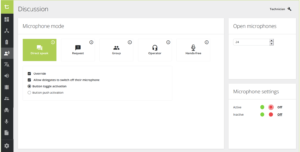
Confero 360 offers five microphone modes. This guide focuses on Request mode.
How it works
A delegate who wishes to speak presses their microphone. Once pressed, it joins the request list, and the microphone turns green. If it is first in the queue, the mic blinks green to show who speaks next.
The chairperson or operator then allows a delegate to speak with a single click of the mouse. That delegate’s microphone turns red and becomes active.
A quick guide to the colours:
- Green – waiting in the queue
- Blinking green – you’re next
- Red – microphone is live
These colours can be swapped if you prefer — for instance, red for waiting and green for live.
So who gets to speak first?
The order is first come, first served — whoever presses first goes to the top of the list, the second to press comes next, and so on. Even with a long queue of ten or more waiting to speak, the chairperson or operator can see everyone at a glance and simply choose who speaks next. The request list can also be hidden, so that only the chairperson and operator can see it.
You decide how much control delegates have
Request mode can be set up to suit how you like to run a meeting. Two options are worth knowing:
- Can a delegate cancel their own request? You can allow delegates to leave the queue themselves by pressing their microphone again — or lock this, so that only the chairperson or operator can remove someone from the list.
- Can a delegate switch off their own microphone? Once a microphone is live, you can let the delegate turn it off themselves — or reserve that control for the chairperson or operator.
Whichever way you set it, the chairperson always stays in charge of the room.
Does the chairperson need any special skills to operate it?
Not at all. The system is designed to be as natural as possible and works just as you’d expect, so even a first-timer will learn it quickly.
And if the chairperson would rather stay in command without operating the system, an operator can sit beside them and take instructions on who to bring in.
It runs on Confero 360, a web-based software. You can use any laptop you like — with a browser such as Safari, Chrome or Microsoft Edge — to connect to the Plixus (the brain of the system) via its IP address.
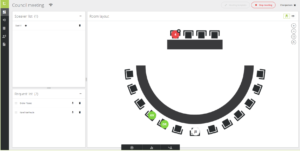
The chairperson’s screen — the speaker list and request list on the left, and a live room map showing exactly where each delegate is sitting.
The user interface is intuitive, clean and simple to use. In front of you, you have three things:
- Speaker list – the delegates whose microphones are already active.
- Request list – the delegates who have asked to speak.
- Room Layout – choose how you’d like to see everyone: as a name list, or as a room map that shows exactly where each delegate is sitting. Whichever you pick, you can see who is speaking and who is waiting at a glance.
One more thing — the chairperson’s microphone
The chairperson’s microphone has two extra buttons that a normal delegate microphone does not:
- Next-in-line – activates the next speaker waiting in the request list, so the meeting keeps moving without a mouse click.
- Priority (marked with a ‘crossed-out person’ icon) – gives the chairperson the floor at any time. It works two ways:
- Short press – switches off all active delegate microphones (but not other chairperson microphones), so the chairperson can cut in and speak.
- Long press – temporarily silences all delegate microphones for as long as the button is held. The moment it is released, those conference microphones come back on.